Best Settings for PojavLauncher to Get Smooth Gameplay on Android
Playing Minecraft Java on Android using PojavLauncher is not always smooth. Sometimes the game works fine, but sometimes it becomes slow and laggy without any clear reason. FPS drops, screen stutter, and sudden crashes are very common problems. Most of the time, this does not mean your phone is bad. It usually happens because the settings are not correct.
The good thing is that PojavLauncher performs much better with the right setup. A few small changes can improve FPS and reduce lag a lot. Even phones with low RAM can run the game nicely if the settings are adjusted properly. In this article, we are sharing the best PojavLauncher settings in a simple way so anyone can follow them easily.
What You Need to Know Before Changing PojavLauncher Settings
Before changing any setting, one thing is very important to understand. Every phone is different. A setting that works perfectly on one device may not work the same on another phone. Because of this, you should not copy settings blindly. Use them as a base and adjust slowly according to your device.
Another mistake people make is changing too many settings at once. When the game starts lagging or crashing, you won’t know which option caused the problem. Change one or two things, test the game, and then continue. Also, remember, higher graphics do not mean better gameplay. On mobile, smooth gameplay is always better than fancy visuals.
Best Graphics Settings for PojavLauncher (FPS Boost)
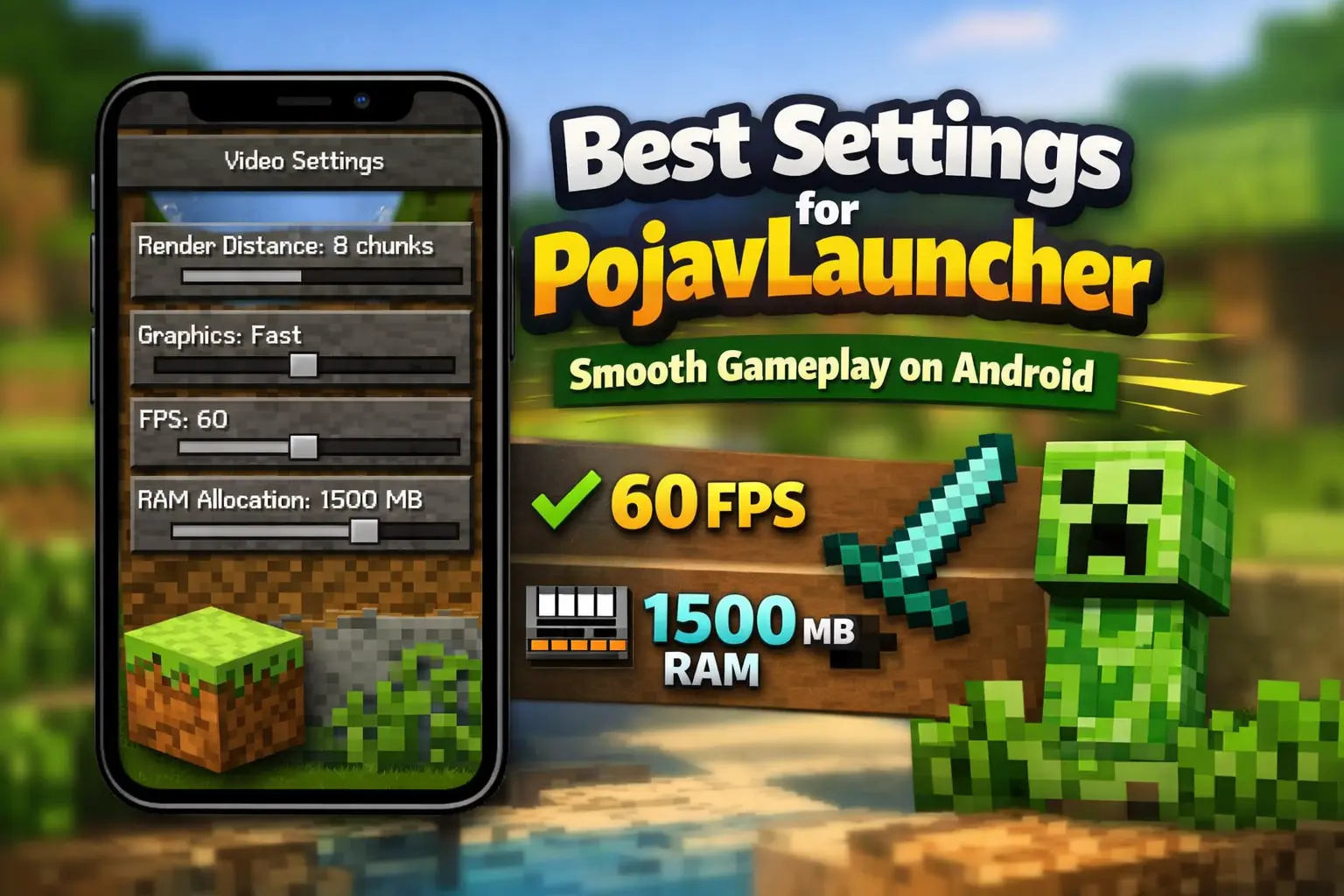
Graphics settings have the biggest impact on FPS in PojavLauncher. To get better performance, keep the graphics simple. Set Render Distance low, usually around 6 to 8 chunks. Turn off options like Clouds, Smooth Lighting, Shadows, and VSync. These settings look good, but they use a lot of power and reduce FPS quickly.
You should also use Fast graphics instead of Fancy and keep Particles on Minimal or Decreased. If your phone is weak, avoid shaders completely. The game may not look very pretty, but it will run much smoother. On mobile devices, smooth gameplay always matters more than high graphics.
Best Performance Settings for Low-End Devices
If your phone has 2–4 GB RAM, performance settings become very important. Before opening PojavLauncher apk, close all other apps running in the background. Inside the launcher, keep everything light. Use lower resolution settings, turn off extra visual effects, and do not use shaders at all. These small changes help reduce the load on your phone.
You should also limit how much the game loads at one time. Keep render distance low and avoid heavy mods. Do not use high-resolution texture packs. If the game starts stuttering, restarting PojavLauncher often helps. Low-end phones can still run Minecraft Java well, but only when the load is controlled.
Best Java & Runtime Settings in PojavLauncher
Java and runtime settings control how the game runs behind the scenes. Always use the recommended runtime that PojavLauncher suggests for your Android version. Do not install random runtimes from the internet unless you fully understand them. The default runtime is already optimized and works best for most users.
When it comes to memory, more is not always better. Giving too much RAM can cause crashes, especially on low-end phones. If your device has 2–4 GB RAM, keep Java memory between 512 MB and 1024 MB. Avoid touching advanced Java options unless necessary. Simple and stable settings are always safer.
Best Version of Minecraft to Use for Performance
The Minecraft version you choose affects performance a lot. Older versions run much more smoothly on most phones. Versions like 1.8.9 and 1.12.2 are very light and work well on low-end devices. They load faster, use less RAM, and give better FPS.
Newer versions, such as 1.18+ or 1.20+, include many features, but they are heavy and need more power. On phones with limited RAM or weak processors, these versions often lag badly. For best results on PojavLauncher, start with older versions and move up only if your phone can handle it.
Extra Tips to Reduce Lag and Crashes
Some small habits can really help PojavLauncher run better. Always close background apps before starting the game, especially heavy apps like YouTube or Instagram. Try to play when your phone is not too hot, because heat can cause lag and crashes. Restarting your phone sometimes also helps clear memory.
Inside the game, avoid using too many mods or heavy texture packs. Stick to one or two light mods if needed. A stable WiFi connection usually works better than mobile data. If the game starts acting strangely, do not panic. Just close PojavLauncher and open it again. Most of the time, this fixes the issue.
FAQs
Which settings improve FPS the most in PojavLauncher?
Lower render distance, Fast graphics, turning off clouds and particles, and avoiding shaders improve FPS the most.
Is PojavLauncher playable on low-end phones?
Yes, phones with 2–4 GB RAM can run it smoothly if light settings and older Minecraft versions are used.
How much RAM should I give to Minecraft in PojavLauncher?
For low-end devices, 512 MB to 1024 MB is enough. Giving more RAM can cause crashes.
Which Minecraft version gives the best performance?
Older versions like 1.8.9 and 1.12.2 run much more smoothly than newer versions on most phones.
Why does PojavLauncher crash sometimes?
Crashes usually happen because of high settings, overheating, too many mods, or wrong runtime configuration.