How to Get and Change Your Skin in PojavLauncher (Simple and step-by-step guide for Android)
Changing your Minecraft skin in PojavLauncher isn’t as difficult as it first looks. Whether you want to upload a custom PNG skin or switch to a new one from your Mojang or Microsoft account, the process only takes a moment once you know where everything is. You can even use offline skins if you’re not playing on official servers.
A lot of players on Android don’t realize that PojavLauncher supports the same skin system as Minecraft Java on PC. You just upload your skin through your account or add it manually, and the game picks it up when you launch. In this guide, we’ll cover both methods so you can change your skin anytime you want.
What You Need Before Changing Your Skin
Before you change your skin in PojavLauncher, you just need a couple of things ready. If you’re using a real Minecraft Java account, make sure you’re signed in with your Microsoft or Mojang login, since the skin you set on your profile will sync automatically. If you don’t have an account or you’re playing on cracked servers, then you’ll need a PNG skin file saved on your phone.
Most players download skins from websites or use custom made ones. It also helps to have Pojavlauncher updated, just so everything loads correctly when you switch skins. A stable internet connection is useful if you’re changing skins through your account, but not required for offline skins. Once you have the login or the PNG file ready, you’re good to go. Now the actual process is very simple.
How Skins Work on Minecraft Java
Minecraft Java handles skins through the player’s profile, not inside the game itself. When you upload a skin to your Microsoft or Mojang account, the game pulls that skin from the server every time you join a world or a multiplayer server. That’s why your skin shows up automatically on PC, and PojavLauncher follows the same system.
As long as you’re logged in with a real Java account, your skin updates the next time you launch the game. For players without an official account, skins work a little differently. The game can’t load a skin from Mojang’s servers, so Pojavlauncher uses your local PNG file instead.
Then skin will show up for you, but not always for other players unless you’re on a cracked server that supports offline skins. Otherwise, Java Edition always reads your skin from one of two places your online profile or a PNG you manually add.
Change Skin with Microsoft/ Mojang Account
If you’re signed in with a real Minecraft Java account, changing your skin is actually done outside of Pojavlauncher. All you have to do is visit your Minecraft profile page, upload the skin you want, and save it. Once the new skin shows up on your profile, you can open PojavLauncher and launch the game. The skin updates automatically because Java Edition pulls it directly from your account.
This method works smoothly for anyone using premium servers or playing on Hypixel, Mineplex, or other official networks. Just make sure you’re logged into Pojavlauncher with the same Microsoft or Mojang account you changed the skin on. If the skin doesn’t appear right away, most of the time, closing and reopening the app will solve this issue.
Add a Custom PNG Skin Manually
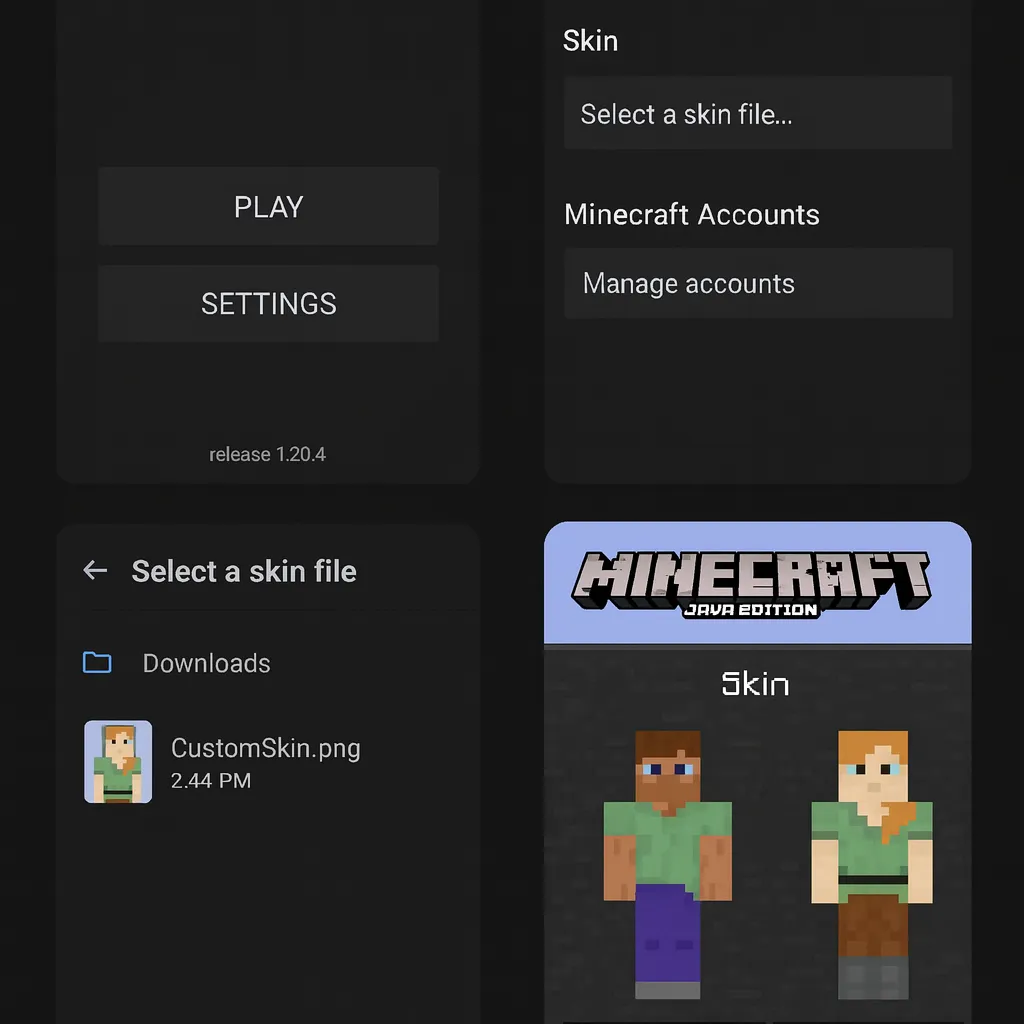
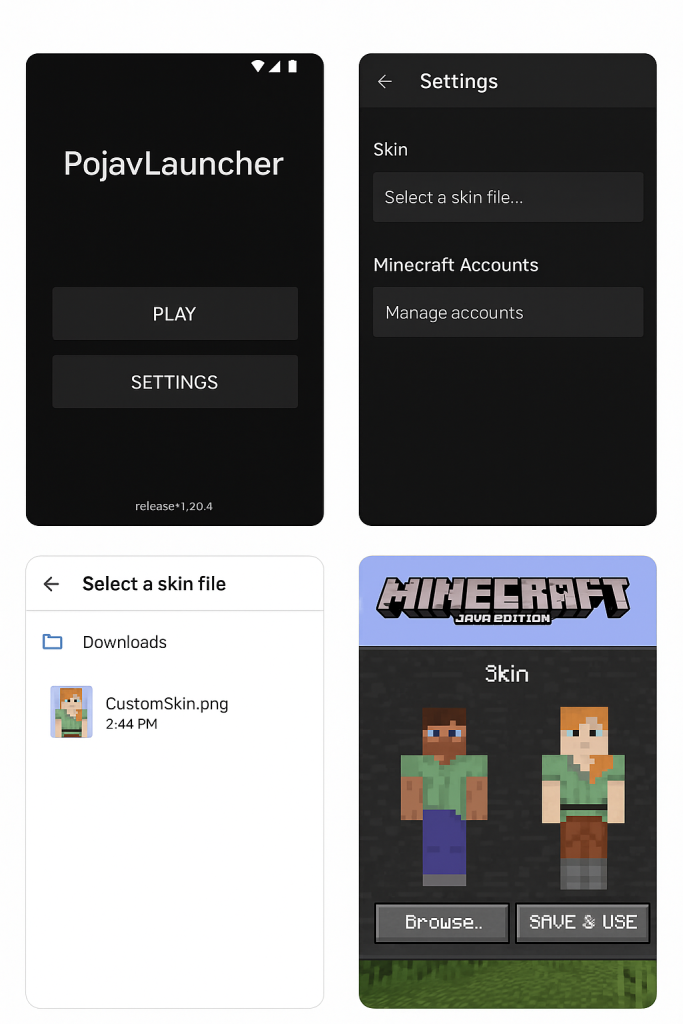
If you don’t use a paid Minecraft account or you prefer custom skins, you can add a PNG skin directly in PojavLauncher. First, download the skin you want and make sure it’s a proper 64×64 PNG file (most skin websites already give you the correct format). Keep the file somewhere easy to find, like your Downloads folder.
After that, open PojavLauncher, go to the settings area, and look for the option that lets you choose a local skin file. Tap it, select your PNG, and save the change. Once the skin is applied, just launch Minecraft Java normally. Your new skin will show up for you right away, and on many cracked or offline servers, other players will see it too.
If you join premium servers, the skin might default to Steve or Alex, which is normal because those servers check official accounts. But for personal worlds, LAN games, and cracked servers, your custom PNG works without any issues.
Use an Offline Skin
If you’re not logged in with a Microsoft or Mojang account, you can still use a skin in PojavLauncher by setting an offline skin. This works almost the same as adding a custom PNG, but the skin is applied directly to your offline player profile instead of syncing through Mojang’s servers.
All you need is a PNG skin file saved on your phone, and PojavLauncher will load it every time you start the game in offline mode. Offline skins usually show up fine in single-player worlds and on cracked servers that allow custom player textures. On official servers, though, your skin won’t appear because they only accept skins from verified accounts.
But for casual play, LAN worlds, or community servers that support offline players, this method works without any extra setup.
Skin Not Showing Fixes
If your skin isn’t showing up in PojavLauncher, the first thing to check is whether you’re logged in with the correct account or using the right PNG file. Sometimes the launcher loads an older skin from memory, so restarting the app or switching between online and offline mode can refresh it.
Also, make sure the PNG is in the proper Minecraft skin format stretched or wrong-sized files won’t load properly. If you’re playing on an official server and using an offline skin, it simply won’t appear to other players because those servers require a verified Java account.
On cracked servers, the issue usually comes from the skin system being disabled or the server needing a plugin to show custom skins. If nothing works, reinstalling or reapplying the runtime inside Pojavlauncher often clears whatever was blocking the skin from loading.
Tips for Better Skins on Mobile
If you want your skins to look clean on mobile, stick with good quality PNG files and avoid stretched or edited skins that distort when Minecraft loads them. Lowering your video settings a little can also help the skin render smoothly, since the Pojavlauncher app can struggle on older phones when everything is set too high.
And if a skin looks blurry or washed out, try restarting the launcher on Android because sometimes it needs a fresh load to display textures properly.
Conclusion
Changing your skin in APK Pojavlauncher is a lot easier once you know where everything is. Whether you’re using a real Java account or just dropping in a PNG for offline play, both methods work smoothly on Android. Once you set it up the first time, switching skins later takes only a moment.
FAQs
Why isn’t my new skin showing in-game?
Sometimes the launcher keeps the old skin cached. Restarting PojavLauncher or reapplying the PNG usually fixes it. Also, remember that official servers only show skins from real Java accounts.
Can I use any PNG file as a skin?
Yes, you can use it, but keep in mind the Minecraft skin format should be (64×64). Random images won’t load correctly.
Do offline skins work on every server?
No, they work in single player, LAN, and cracked servers, but not on premium servers like Hypixel.
Can I switch between multiple skins easily?
Yes, just keep your PNG files saved somewhere on your phone and swap them using the skin option inside PojavLauncher.