Mods Not Showing in Minecraft PojavLauncher? (Quick Fix Guide)
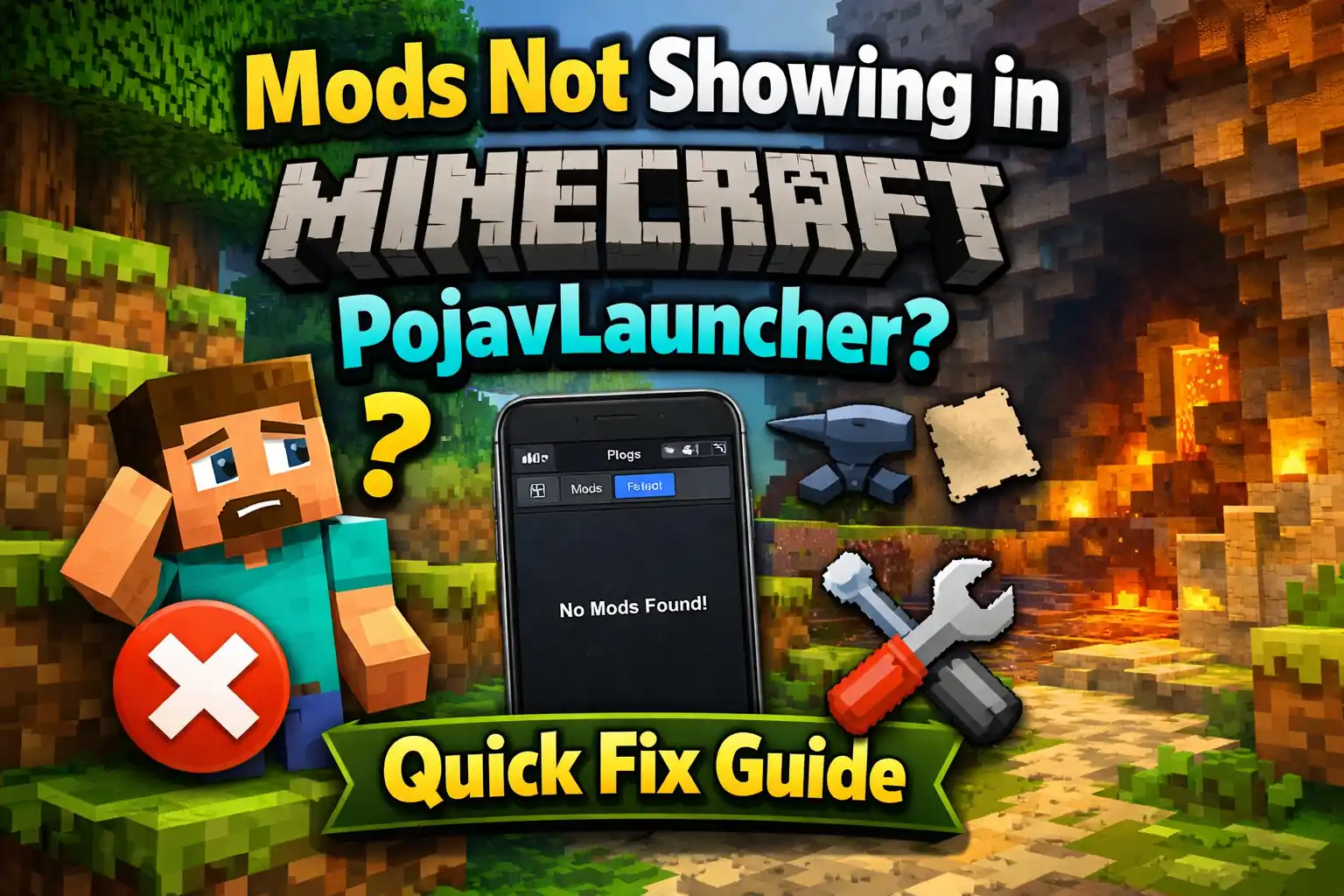
Playing Minecraft Java with mods is one of the main reasons people use PojavLauncher. But many users face a frustrating problem. They install mods, start the game, and nothing shows up. No mod menu, no changes, no errors, just normal Minecraft. This makes it feel like the mods were never added at all.
In most cases, this problem is not serious. Mods usually don’t show up because of small mistakes like the wrong mod loader, wrong game version, or placing files in the wrong folder. In this guide, we’ll explain why mods don’t appear in Minecraft on PojavLauncher and how you can fix it step by step without any confusion.
Why Mods Are Not Showing in Minecraft (PojavLauncher)
When mods don’t show up in Minecraft on PojavLauncher, it’s usually because the game is not loading them at all. This happens when something basic is missing or mismatched. Most of the time, players install mods correctly but forget that Minecraft Java needs the right setup to read them. If the launcher can’t understand the mods, it will just ignore them and start the game normally.
Another common reason is confusion between versions and mod types. A Forge mod will never work without Forge, and the same goes for Fabric mods. Also, if the Minecraft version doesn’t match the mod version, the game skips loading it without showing a clear warning. So when mods don’t appear, it doesn’t mean PojavLauncher is broken, it usually means one small setup step is wrong and needs fixing.
Check If You’re Using the Correct Mod Loader (Forge / Fabric)
One of the biggest reasons mods don’t show up is using the wrong mod loader. Minecraft Java does not load mods by itself. It needs a mod loader like Forge or Fabric. If you install Forge mods but start the game without Forge selected, the mods will never appear, no matter where you place them.
Fabric works the same way. Fabric mods only load when Fabric is installed and selected in PojavLauncher. You also cannot mix Forge mods with Fabric mods. Always check which loader your mod needs, then install that loader and select it before launching the game. Once the correct loader is active, most mods start showing up immediately.
Correct Mods Folder Location in PojavLauncher
Even if your mod is perfect, it will not show up if it’s placed in the wrong folder. PojavLauncher uses the same folder system as Minecraft Java, but on Android it can confuse many users. Mods must be placed only inside the mods folder of the correct Minecraft directory. If the mod is outside this folder, Minecraft will completely ignore it.
In most cases, the correct path looks like this: Android/data/net.kdt.pojavlaunch/files/.minecraft/mods/ Make sure your mod file ends with .jar and is not inside another folder or zip file. After placing the mod, close PojavLauncher fully and open it again. Once the game reloads with the correct folder, your mods usually start showing up without any extra steps.
Minecraft Version Mismatch (Most Common Issue)
This is the most common reason why mods don’t show up in Minecraft. Every mod is made for a specific Minecraft version. If your game version and mod version don’t match, Minecraft will simply skip the mod without showing any clear error. The game will still start, but the mod will not load.
For example, if your mod is made for Minecraft 1.19.2 and you are running 1.20, it won’t work. The same problem happens with older versions too. Always check the mod’s version before installing it, then select the same Minecraft version in PojavLauncher. Once the versions match properly, mods usually start appearing right after launch.
How to Fix Mods If Not Showing
If your mods are not showing, go through these points. Most problems get fixed right here:
- Make sure you selected Forge or Fabric before starting the game
- Check that the mod matches your Minecraft version
- Confirm the mod file ends with .jar and is not zipped
- Place the mod only inside the mods folder
- Do not mix Forge mods with Fabric mods
- Remove any broken or old mods and test with one mod first
- Close PojavLauncher completely and open it again
After checking these points, start the game once more. In most cases, mods begin showing up immediately once the setup is correct.
FAQs
Why are my mods not showing in Minecraft on PojavLauncher?
Most of the time, this happens because the wrong mod loader is selected or the mod version doesn’t match the Minecraft version. If Minecraft starts normally without errors, it usually means the game skipped loading the mod.
Do I need Forge or Fabric to use mods in Minecraft Java Edition?
Yes, Minecraft Java does not load mods by itself. You must install and select Forge or Fabric depending on what type of mod you are using. Without a loader, mods will never appear.
Where should I place mods in PojavLauncher?
Mods must be placed inside the correct mods folder of the Minecraft directory used by PojavLauncher. If the mod is placed in the wrong folder or inside a zip file, Minecraft will ignore it completely.
Why does Minecraft start but mods still don’t load?
This usually means there is a version mismatch. Even a small version difference can stop a mod from loading. Always check the mod’s supported Minecraft version and match it exactly in the launcher.
Do mods work on low-end Android phones?
Yes, but only light mods. Heavy mods can fail to load or crash the game on low-RAM devices. It’s better to test one mod at a time and avoid large mod packs on weaker phones.